


Migrating your WordPress site to a new hosting provider can seem intimidating, but with proper guidance and tools, it can be a smooth and stress-free process. This guide will walk you through the steps and cover essential tips, tools, and troubleshooting techniques to ensure a successful Transfer WordPress Site to New Host.
Why Migrate Your WordPress Site to a New Host?
Switching to a new hosting provider might be necessary for better performance, additional features, cost savings, or improved customer support. Whatever the reason, it’s crucial to handle the migration process of your WordPress site carefully to avoid downtime or data loss.
Preparation Steps Before Migration
1. Choose a Reliable New Hosting Provider
Research hosting providers to ensure they meet your website’s performance and feature requirements. Many hosts, such as SiteGround and Fallen Leaf, offer free WordPress migration assistance when moving to their WordPress hosting, which can simplify the process.
2. Set Up the New Host Environment
Install WordPress on the new web host but refrain from uploading your existing site files yet.
3. Put up a holding page
Put up a holding page on your current website. This is especially important if your site is e-commerce as you don't want any orders to be placed whilst you are migrating as this will cause data loss. There are a number of free plugins that can be used for holding pages such as Coming Soon by SeedProd
4. Backup Your Website
Before making any changes, create a complete backup of your website. This includes both files and databases. This will ensure you have a solid backup before any changes.
Understanding the Migration Process
Migrating a WordPress site to a new host or server can seem daunting, but breaking it down into manageable steps can make the process much more straightforward. The migration process typically involves several key steps:
- Backing Up Your Website Files: Before you start, ensure you have a complete backup of your website files. This includes all your WordPress files, themes, plugins, and media uploads. Tools like Duplicator or UpdraftPlus can help automate this process.
- Exporting Your WordPress Database: Use phpMyAdmin to export your WordPress database. This step is crucial as it contains all your site’s content, settings, and user information. Save the SQL file to your local computer for later use.
- Creating a New Database on Your New Host Server: Log in to your new hosting provider’s control panel and create a new MySQL database. Assign a user with full permissions to this database and note down the database name, username, and password.
- Editing the wp-config.php File: Locate the wp-config.php file in your website’s files and update it with the new database details. This ensures your WordPress site can connect to the new database on the new host server.
- Importing Your WordPress Database: Use phpMyAdmin on your new host to import the SQL file you exported earlier. This step transfers all your site’s content and settings to the new database.
- Uploading Your WordPress Files to Your New Host: Use an FTP client to upload all your WordPress files to the new hosting server. Ensure all files are transferred correctly to avoid any issues.
- Defining a New Domain and Search/Replace Old Domain: If you’re changing your domain, use tools like Better Search Replace to update all instances of the old domain in your database. This step ensures all links and references point to the new domain.
By understanding the steps involved, you can migrate your WordPress site to a new host with minimal hassle and downtime.
Step-by-Step Guide to Transferring Your WordPress Site manually
Step 1: Export Files
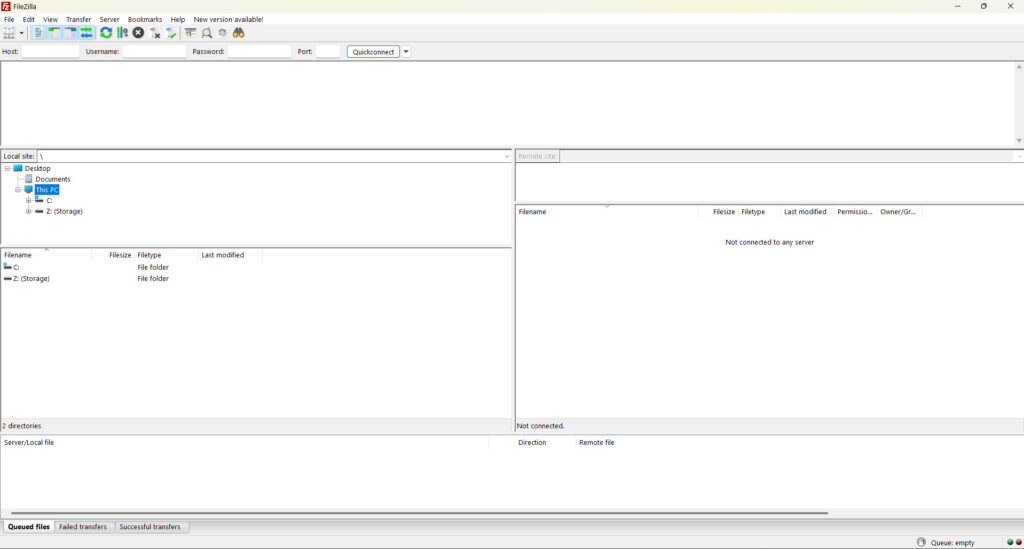
Use an FTP client (e.g., FileZilla) to download all your website files from the old host, ensuring you back up your site's files for a smooth transition.
Step 2: Export Your Database using PHPMyAdmin
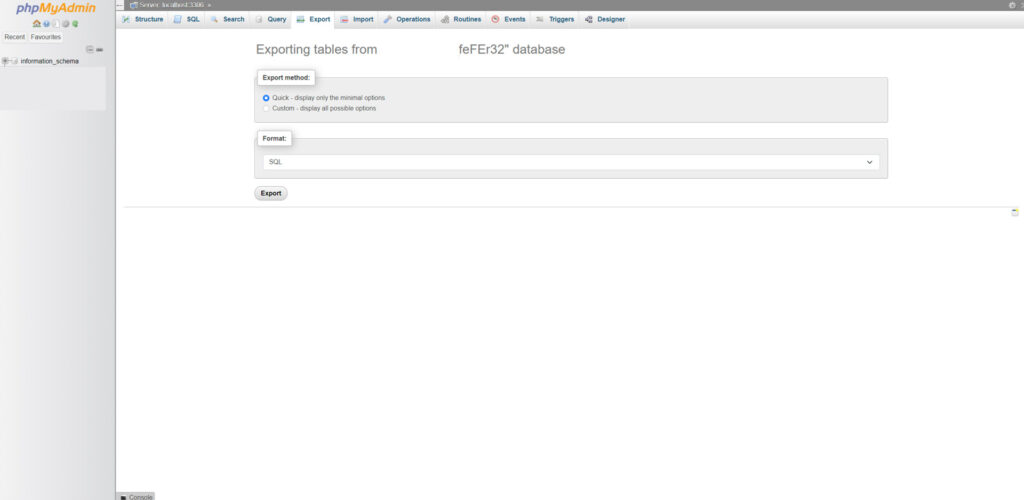
- Log in to your hosting account’s phpMyAdmin.
- Select your database
- Click on the “Export” tab
- If your database is quite large choosing a compression option such as gZip can reduce the file size improving upload to the new host.
- Save the SQL file to your local computer.
Step 2: Set Up Database on the New Host
- Create a new MySQL database on your new web host via the control panel.
- Assign a user with full permissions to this database.
- Note the database name, username, and password for later.
Step 3: Import Files and Database
- Use your FTP client to upload the downloaded website's files to the new host.
- Import the SQL database file into the new MySQL database using phpMyAdmin.
1. Open the “Import” tab.
2. Choose the exported SQL file and start the import.
Step 4: Update Configuration
- Locate the wp-config.php file in your website files.
- Update the database name, username, password, and site URL to match the new host’s settings.
Step 5: Update Domain Settings (DNS)
- Update your domain’s nameservers to point to your new hosting provider. Nameserver details are usually provided by your host.
- Remember, DNS changes can take up to 48 hours to propagate globally.
Step 6: Test Your Website
Before the DNS changes are fully propagated, you can test your WordPress website on the new host using the hosts file trick:
- Map your domain to the new server’s IP address in your local hosts file. This can be found in windows/system32/etc folder on a windows machine.
- Test all functionalities of your site, including forms, login pages, and third-party integrations.
- Ensure caching plugins are re-enabled if they were disabled before migration.
- Check for broken links, missing files, or other errors and correct them before updating your DNS.
Important: Keep your old hosting account active for at least a week as a fallback in case you have any issues or notice migration problems.
Using Migration Tools for Simplified Transfers
Duplicator Plugin
Duplicator is one of the most popular WordPress migration plugins, offering features such as:
- Automated backups
- One-click restore
- Smart migrations with minimal user input
To use Duplicator:
- Install and activate the plugin on your old site.
- Create a new package using the Duplicator wizard.
- Download the Installer and Archive files.
- Upload these files to the new host and run the installer via a browser.
- Follow the steps to complete the migration.
Benefits of Using a WordPress Migration Plugin
Using a migration plugin can significantly simplify the process of migrating a WordPress site to a new host or server. These plugins automate many of the steps involved, reducing the risk of errors and minimizing downtime. Here are some of the benefits of using a migration plugin:
- Automated Backups: Migration plugins like Duplicator, WPvivid, and All-in-One WP Migration can automatically create backups of your website files and database. This ensures you have a complete copy of your site before starting the migration process.
- Easy Export and Import: These plugins streamline the process of exporting your WordPress database and website files. They also make it easy to import these files to your new host server, saving you time and effort.
- Reduced Risk of Errors: By automating complex tasks, migration plugins reduce the likelihood of human error. This can help prevent issues such as broken links, missing files, or database connection errors.
- Minimal Downtime: Migration plugins are designed to minimize downtime during the migration process. This ensures your site remains accessible to visitors and search engines, maintaining your online presence.
- User-Friendly Interface: Most migration plugins offer a user-friendly interface, making it easy for even non-technical users to migrate their WordPress site. Step-by-step wizards guide you through the process, ensuring you don’t miss any critical steps.
By leveraging the power of migration plugins, you can migrate your WordPress site to a new host with confidence and ease.
Common Issues and Troubleshooting Tips
Database Connection Errors
- Double-check database credentials (name, username, password) in the wp-config.php file.
- Some hosts use different MySQL server addresses (not localhost). Confirm with your host.
Broken Links
- Use tools like Better Search Replace to update URLs in your database if your domain has changed.
DNS Propagation Issues
- Use online tools like "What's My DNS" to check propagation status.
- Avoid making changes to your site during this period.
Missing Files
- Verify that all files have been uploaded successfully via FTP.
Conclusion
Transferring your WordPress site to a new host doesn’t have to be daunting. By addressing these common questions, we hope to provide you with the information and confidence needed to successfully migrate your WordPress site to a new host. By following this comprehensive guide, using migration tools, and troubleshooting common issues, you can achieve a hassle-free migration. Take the time to prepare and test thoroughly to ensure your website remains online and functional throughout the process. If you need technical help our team of experienced WordPress website migration specialists can help.
Want to learn more about choosing the right type of WordPress hosting for your WordPress site? Read Our Complete Guide to hosting for WordPress.
How long does it take to migrate a WordPress site to a new host?
The time it takes to migrate a WordPress site can vary depending on the size of your site and the speed of your internet connection. On average, it can take anywhere from a few hours to a full day.
Will my site experience downtime during the migration?
If done correctly, downtime can be minimized. Using migration plugins and following best practices can help ensure your site remains accessible during the migration process.
Do I need technical knowledge to migrate my WordPress site?
While some technical knowledge can be helpful, many migration plugins are designed to be user-friendly and guide you through the process. Additionally, many hosting providers offer migration assistance.
What should I do if I encounter errors during the WordPress migration?
Common issues include database connection errors, broken links, and missing files. Refer to the troubleshooting tips provided in this guide, and don’t hesitate to contact your hosting provider’s support team for assistance.
Can I migrate my WordPress site manually without a plugin?
Yes, you can migrate your WordPress site manually by following the steps outlined in this guide. However, using a migration plugin can simplify the process and reduce the risk of errors.


